

Check what your laptop is doing
Fans often run faster during games, video calls, updates or demanding apps. Open Task Manager to see whether a known app is using a lot of processor power. Let an update finish before judging the fan at idle.
A sudden change in noise during light use is worth investigating. Grinding, rattling or clicking can suggest a different problem from the steady rush of moving air.
Give the vents room to breathe
Use your laptop on a hard, flat surface. Bedding, cushions and soft sleeves can block its air intake. Check the outside vents for visible dust without pushing anything through them.
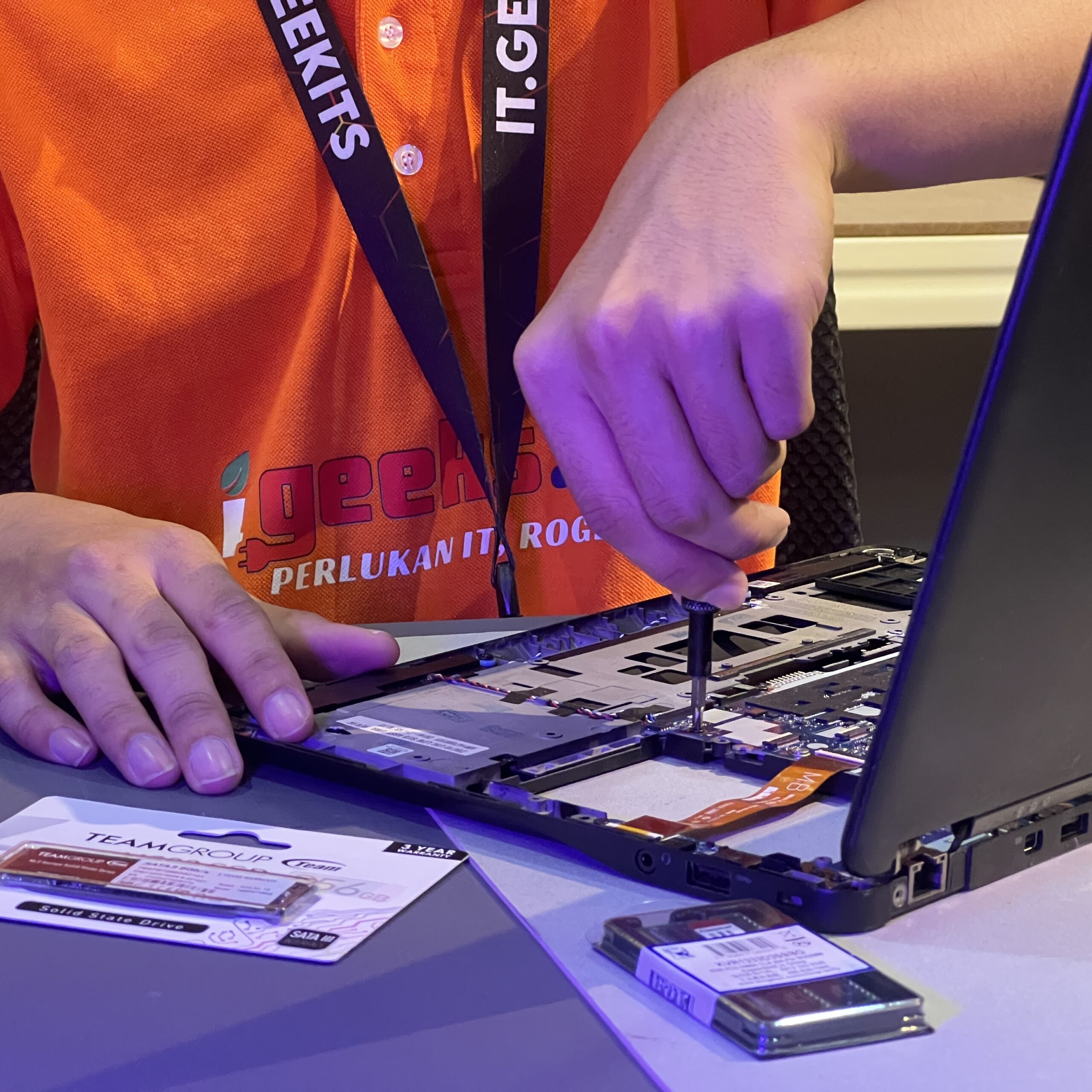
Avoid spraying liquids into vents or opening the laptop if you are unsure how to disconnect its battery safely. Internal cleaning and cooling-system work depend on the model.
Know when to stop using it
If you notice a burning smell, smoke or a swollen battery, stop using the device and disconnect its charger if it is safe to do so. Repeated overheating shutdowns also need inspection rather than continued heavy use.
Cleaning, thermal care or a new fan?
Dust buildup, a worn fan and cooling-system contact problems can produce similar symptoms. Diagnosis helps identify which work is needed; a louder fan alone does not prove that thermal paste or the fan needs replacing.
When asking for a repair quote, share the laptop model, when the noise starts and whether it becomes hot or shuts down. Back up important files before handing in your device.